
Main Module
A main module registers a dedicated page for your extension inside the Administration.
You reach it from Extensions > My Extensions via the Configure button of your extension. Use a main module when your extension provides its own application area with dedicated pages and functionality.
import { ui } from "@shopware-ag/meteor-admin-sdk";addMainModule()
Add a main module to your extension. The content of the main module is determined by your locationId. A specific view or set of actions can be triggered based on the locationId.
Usage
ui.mainModule.addMainModule({
  heading: "My App",
  locationId: "main-location-id",
});
Parameters
| Name | Required | Default | Description |
|---|---|---|---|
heading | true | The heading displayed in your module | |
locationId | true | The Id for the content of the module | |
displaySearchBar | false | true | Toggles the sw-page search bar on/off |
displayLanguageSwitch | false | false | Toggles sw-page language switch on/off |
Return value
Returns a promise without data.
Example
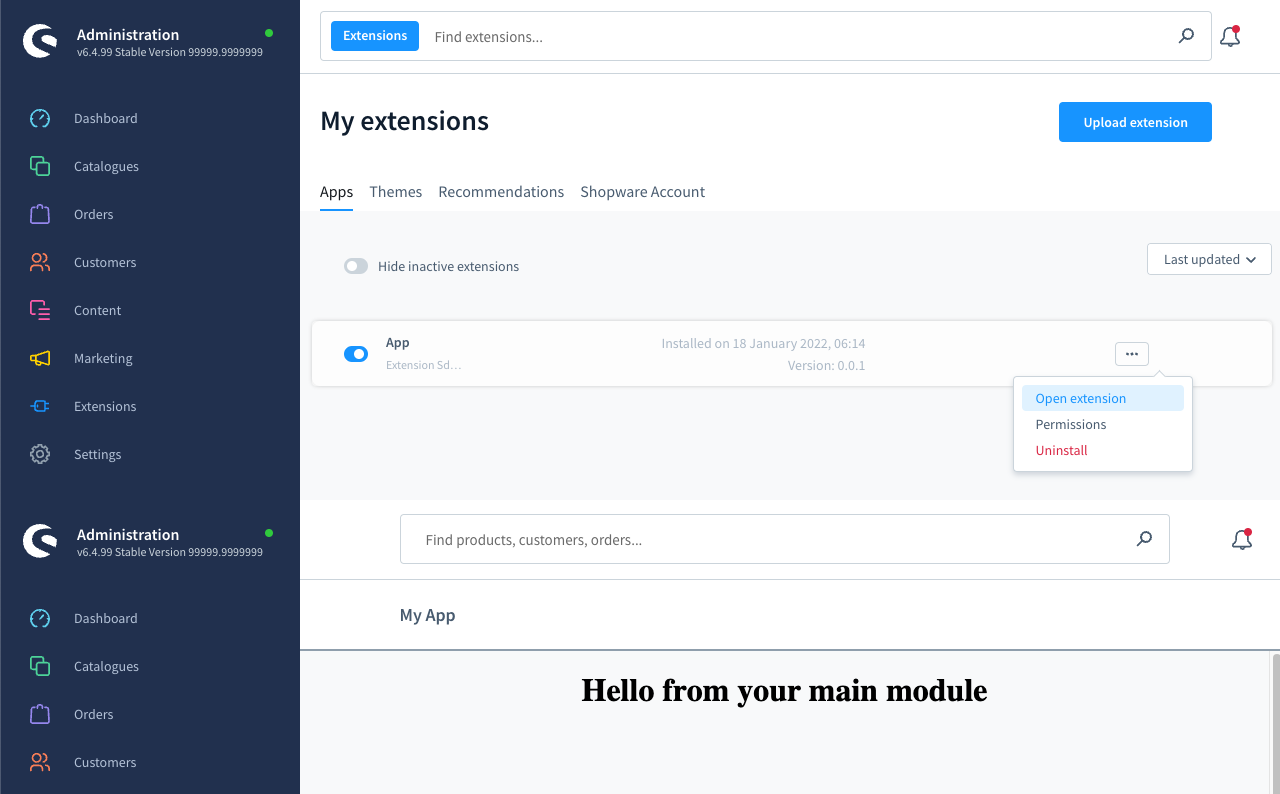
import { location, ui } from "@shopware-ag/meteor-admin-sdk";

// General commands
if (location.is(location.MAIN_HIDDEN)) {
  // Add the main module
  ui.mainModule.addMainModule({
    heading: "My App",
    locationId: "main-location-id",
  });

  // If you want to provide some buttons for the smart bar of your main module
  ui.mainModule.addSmartbarButton({
    locationId: "main-location-id", // locationId of your main module
    buttonId: "test-button", // The button id
    label: "Click me", // The button label
    variant: "primary", // The button variant
    onClickCallback: () => {},
  });

  ui.mainModule.hideSmartBar({
    locationId: "main-location-id",
  });
}

// Render your custom view
if (location.is("main-location-id")) {
  document.body.innerHTML =
    '<h1 style="text-align: center">Hello from your main module</h1>';
}
addSmartBarButton()
Add a button to the smart bar of your main module. The button can be used to trigger actions, e.g. saving, cancel, etc. The location ID needs to be defined and have the same value as the locationId of the main module.
Usage
ui.mainModule.addSmartBarButton({
  locationId: "main-location-id", // locationId of your main module
  buttonId: "test-button", // The button id
  label: "Click me", // The button label
  variant: "primary", // The button variant
  onClickCallback: () => {},
});
Parameters
| Name | Required | Default | Description |
|---|---|---|---|
locationId | true | The locationId of the module you want to display the smart bar button | |
buttonId | true | The id of the button | |
label | true | The label of the button | |
variant | false | primary | Set the variant of the button. Possible values: primary, ghost, danger, ghost-danger, contrast, context |
onClickCallback | true | Callback function which will be called once the button is clicked | |
disabled | false | false | Toggle disabled state of the button |
Return value
Returns a promise without data.
hideSmartBar()
Turn the smart bar off as needed.
Usage
ui.mainModule.hideSmartBar({
  locationId: "main-location-id",
});
Parameters
| Name | Required | Default | Description | Available at Shopware |
|---|---|---|---|---|
locationId | true | The locationId of the module you want to hide the smart bar | v6.6.7.0 |
Return value
Returns a promise without data.
