
Locations
Locations define where an extension renders inside the Shopware Administration. Your SDK code is injected into every visible location, plus one hidden location that handles the main registration logic, and each of those locations runs inside its own iframe. Because every iframe executes the same JavaScript code, you need to check which location is currently active and render the appropriate view for it.
Mental model
Each location is identified by a location ID. When you register a UI extension, you choose a locationId. Then in your code, you use location.is() to branch between the hidden iframe where you register UI and the visible iframe where you render content:
import { location } from '@shopware-ag/meteor-admin-sdk';

if (location.is(location.MAIN_HIDDEN)) {
  // Register UI extensions here
}

if (location.is('my-app-card-before-properties')) {
  // Render the content for this location here
}
Here is the same pattern with a full component section example:
import { ui, location } from '@shopware-ag/meteor-admin-sdk';

if (location.is(location.MAIN_HIDDEN)) {
  ui.componentSection.add({
      component: 'card',
      positionId: 'sw-product-properties__before',
      props: {
          title: 'Hello from plugin',
          subtitle: 'I am before the properties card',
          locationId: 'my-app-card-before-properties'
      }
  })
}

if (location.is('my-app-card-before-properties')) {
    document.body.innerHTML = '<h1>Custom content here</h1>';
}
Base location (hidden iframe)
Every extension is initially loaded in a hidden iframe. This is where you register all your UI extensions — adding tabs, component sections, menu entries, and so on. To check whether the current code is running in the hidden iframe, use the MAIN_HIDDEN constant:
import { location } from '@shopware-ag/meteor-admin-sdk';

if (location.is(location.MAIN_HIDDEN)) {
  // Do the stuff in the hidden iFrame
}
Change iframe height
The iframe height is fixed by default. You can set it explicitly:
location.updateHeight(750); // set iframe height to 750pxIn most cases you want the height to adjust automatically. The auto resizer watches for height changes and updates the iframe whenever the content size changes:
// watch for height changes and update the iFrame
location.startAutoResizer();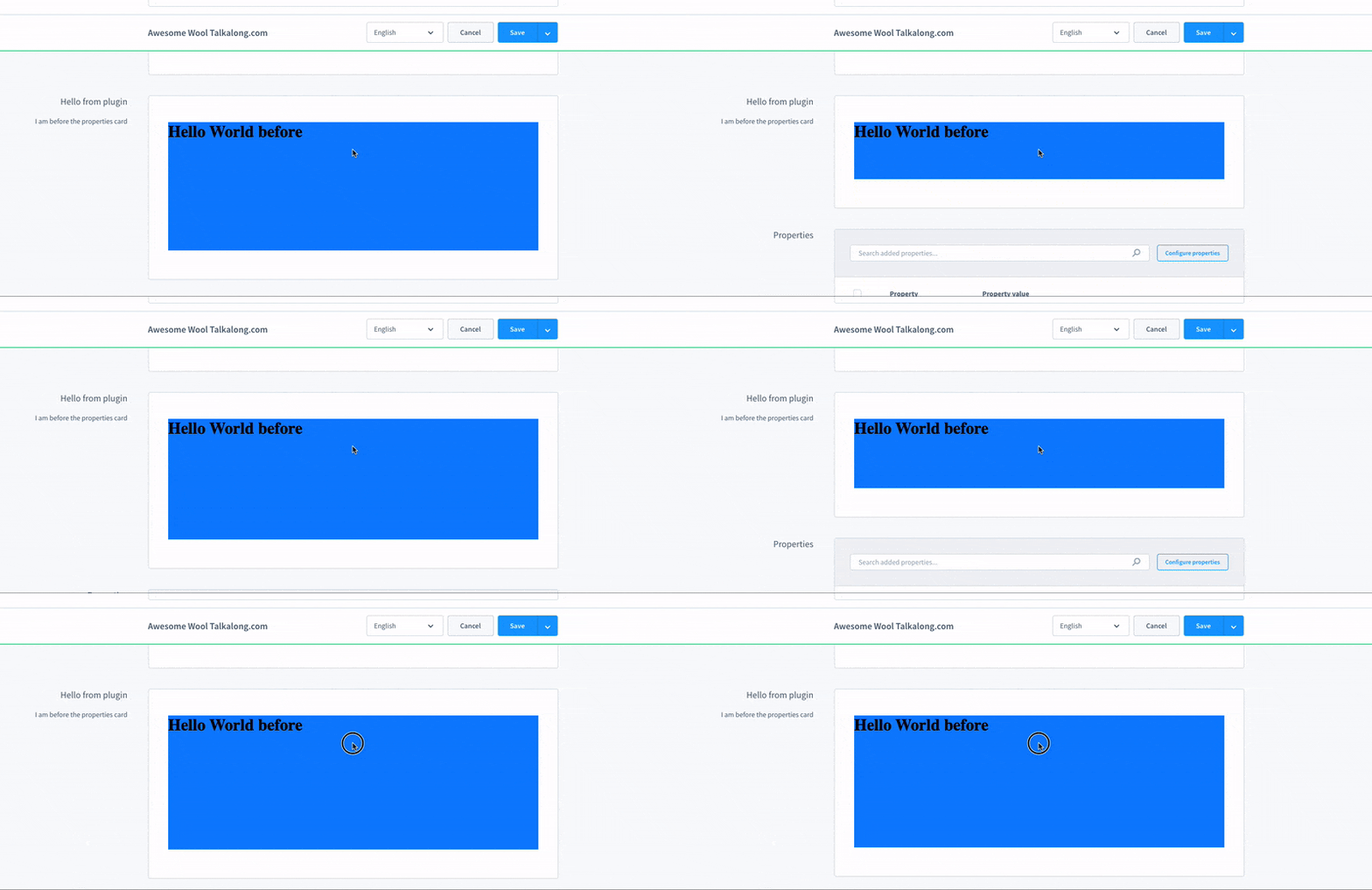
Avoiding scrollbars
When rendering custom locations, add overflow: hidden; to the body element to prevent unnecessary scrollbars inside the iframe.
Render Vue components instead of iframes (plugin migration)
When migrating existing plugins, you can mix the SDK with the existing plugin system. Instead of rendering an iframe, you can render a Vue component registered via Shopware.Component.register at a location.
Register the component:
Shopware.Component.register('your-component-name', {
  // your component
})
Then map it to a location ID using the sdkLocation store:
Shopware.State.commit('sdkLocation/addLocation', {
    locationId: 'your-location-id',
    componentName: 'your-component-name'
})
A complete example that adds a tab to the product detail page and renders a Vue component inside a card:
// in a normal plugin js file without a HTML file
import { ui, location } from '@shopware-ag/meteor-admin-sdk';

if (!location.isIframe()) {
  const myLocationId = 'my-example-location-id';

  // Create a new tab entry
  ui.tabs('sw-product-detail').addTabItem({
      label: 'Example tab',
      componentSectionId: 'example-product-detail-tab-content'
  })

  // Add a new card to the tab content which renders a location
  ui.componentSection.add({
      component: 'card',
      positionId: 'example-product-detail-tab-content',
      props: {
          title: 'Component section example',
          locationId: myLocationId
      }
  })

  // Register your component which should be rendered inside the location
  Shopware.Component.register('your-component-name', {
    // your component
  })

  // Add the component name to the specific location
  Shopware.State.commit('sdkLocation/addLocation', {
      locationId: myLocationId,
      componentName: 'your-component-name'
  })
}